

Display Properties
When you select a display object in Vizex, you can view and (sometimes) edit the display properties of that object. The Type of the current layer and the Name of the current layer are also displayed at the top of the Display Properties pane.
Display properties for an object are separate from the data properties which are shown in the Properties pane.

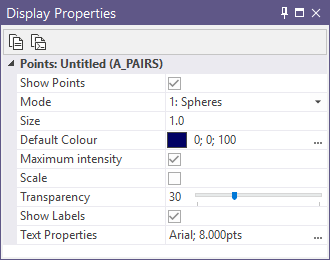
You can use the Display Properties pane to view and edit the display properties for the selected, supported object. Draw style, transparency, and label properties can be modified for wireframes, for example:
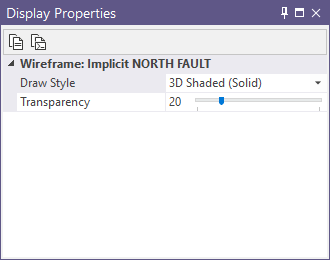
View
Which properties you can see will depend on the type of object and the type of selection (single or multiple).
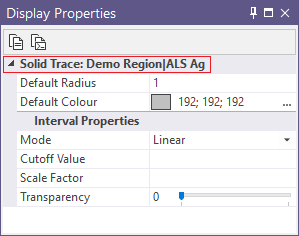
The type of the selected layer and the name of the selected object is displayed in the header of the Display Properties pane:
Edit
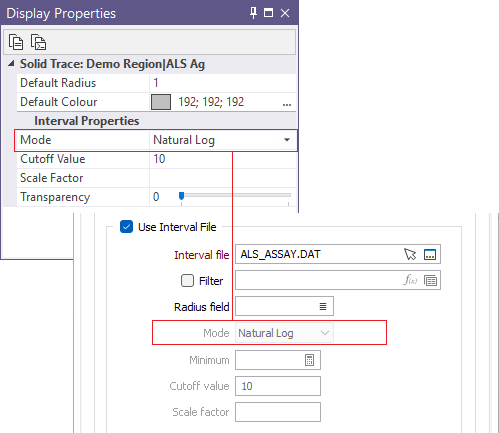
Any changes you make to the display properties of an object in the Display Properties pane are reflected in the underlying form.
For example, if you set the Interval Properties Mode for a Solid Trace object to Natural Log, the displayed trace will be displayed in Natural Log mode and the underlying form for the object will be updated:
Automatic Updates
The Display Properties of an object are updated automatically when a function or tool is used to modify that object. If you open the form for the object and change the default colour, for example, the Display Properties pane is updated automatically with the new setting.
Popup Properties
Object properties are shown automatically in a popup window when you hover the mouse over an object in the Vizex display:
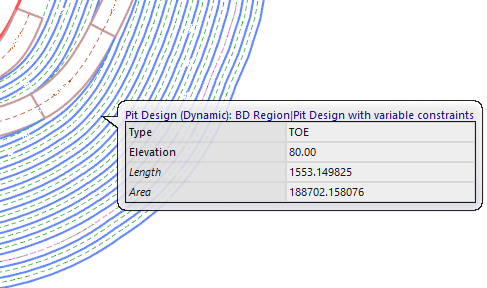
You can turn the default behaviour on or off for individual layer types via the Default Layer Options tab in the Project Options | Vizex form.
You can turn the Data Popup feature off entirely, or increase the delay before a popup displays, via the General tab in the Project Options | Vizex form.